Organizing
How to Organize Your Saved Instagram Tutorials
Your Saved tab is full of things you're going to make someday. Here's a simple system for sorting it out, and for turning the best saves into projects you actually finish.
Quick answer
To organize your saved Instagram tutorials:
- Sort your saves into Instagram collections by type of project.
- Add one more collection called Doing next, and keep it to five posts.
- Clear out what you'll never make, once a month.
- Move the ones you're ready to make into a project app like InspiraDo, which turns an Instagram Reel into steps, materials and a shopping list.
Saving an Instagram Reel takes one tap. Finding it again three months later takes twenty minutes of scrolling, and by then you've forgotten what it was called and who made it. The fix isn't saving less. It's giving your saves somewhere to go.
Where your saved posts live
On Instagram, go to your profile, tap the menu in the top corner, then tap Saved. Everything you've ever bookmarked is in All posts, and any collections you've made are listed alongside it. (Instagram moves its menus around from time to time. If yours looks different, look for Saved in the profile menu.)
Your saved posts and collections are private. Nobody else can see what you've saved or how you've sorted it.
Step 1: Create collections
There are two ways to put posts into a collection:
- As you save. Instead of just tapping the bookmark icon, tap and hold it. You can pick a collection or start a new one. A post can go in more than one collection.
- For posts you've already saved. In Saved, tap + to create a new collection, name it, then pick the saved posts that belong in it.
Step 2: Use a system that matches how you make things
Most people sort by topic, and that's a good start. A few that work well for tutorials:
- By type of project: Home decor, Crafts, Recipes, Beauty, Garden, Kids.
- By room: Living room, Kitchen, Bathroom, Outside. Great if most of your saves are home projects.
- By readiness: Doing next, This season, Someday.
My recommendation: topic collections for everything, plus a single Doing next collection that never holds more than five posts. Topics help you find things. Doing next is what gets things made.
Step 3: Clear out what you'll never make
Once a month, give your Saved tab ten minutes. Scroll back through your oldest saves and ask one question: would I make this in the next year? If not, unsave it. You don't owe anyone that macramé plant hanger. Fewer saves means the ones that stay are easier to find, and more likely to get made.
Where the Saved tab falls short
Collections help, but Instagram's Saved tab was built for bookmarking, not for making things:
- You can't search it. There's no way to search inside your saved posts. You scroll.
- There are no notes or checklists. You can't write down what paint you used, or tick off steps.
- The steps are still buried. They're spread across the voiceover, the caption, the carousel slides and the comments.
- Saves can disappear. If the creator deletes or archives the post, it's gone from your Saved tab.
Turn your best saves into projects
When something moves into Doing next, that's the moment to turn it into a real project. This is what I built InspiraDo for:
- Share the Instagram Reel to InspiraDo. Tap the Share (paper plane) icon, choose Share to… or More, and pick InspiraDo. You can also copy the link and paste it into the app.
- Tap ✨ Generate project with AI. InspiraDo reads the Instagram Reel's narration and caption and lays out the steps, materials and tools.
- For carousels and silent Instagram Reels, where the steps are written on the slides or on screen, take screenshots and tap 📸 Add from screenshots. The AI reads the text in the images.
- Sort it into a deck, like Crafts or Decor, so it lives with similar projects.
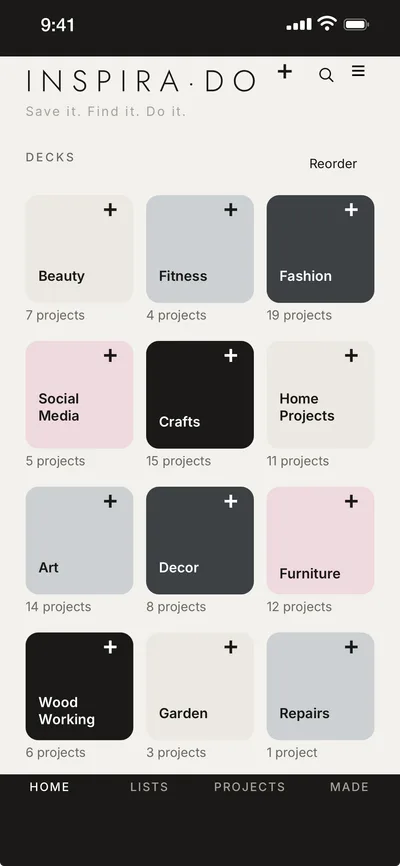
Everything you save to InspiraDo is searchable, including the steps, materials, your notes and the creator's name, so "that table with the fluted legs" is one search away. Each project keeps a View Original link to the creator's post, and InspiraDo never downloads or re-hosts their video.
If it's a video tutorial, the same approach works for TikTok too. See how to turn TikTok videos into step-by-step instructions.
A simple weekly habit
Organizing only matters if things get made. Once a week, pick one project from Doing next, check that you have what's on its materials list, and block out the time. When it's done, tap Mark Complete in InspiraDo so it moves to your Made shelf, then pick the next one. Five at a time, one at a time.
FAQ
Where do I find my saved posts on Instagram?
Go to your profile, tap the menu in the top corner, then tap Saved. Your collections are listed there too. Menu names move around between app versions, so if it looks different, look for Saved in the profile menu.
Can other people see my saved Instagram collections?
No. Saved posts and collections on Instagram are private to you.
Can I search my saved Instagram posts?
Not inside Instagram. You can only scroll through Saved or open a collection. If you save tutorials to InspiraDo, you can search everything you've saved, including the steps and materials.
What happens if a creator deletes a post I saved?
It disappears from your Saved tab. If you turned it into a project in InspiraDo first, your steps, materials and notes stay with you, along with the link and the creator's name.
Give your saves somewhere to go.
Share any Instagram Reel, TikTok, or YouTube tutorial to InspiraDo and turn it into a project with steps and a shopping list. Free on iPhone.
