How-to
How to Turn TikTok Videos Into Step-by-Step Instructions
TikTok is the best place to find a project and the hardest place to follow one. Here's how to get the steps out of a 60-second video and onto a list you can actually work from.
Quick answer
To turn a TikTok into step-by-step instructions:
- Save the video and watch it once all the way through.
- Collect the steps from everywhere they hide: the voiceover, the text on screen, the caption and the comments.
- Write one action per step, starting each with a verb.
- List materials and tools separately.
- Keep a link to the original so you can rewatch it and credit the creator.
Or let an app do it: share the TikTok to InspiraDo, tap ✨ Generate project with AI, and you get numbered steps, materials and tools in about 30 seconds.
For years my saved folders were full of things I was definitely going to make. I almost never did, because every time I wanted to start, I had to dig the video back up, scrub through it, pause, rewind, and try to remember what the caption said. With glue on my hands. That's the gap this guide is about.
Why TikTok tutorials are so hard to follow
A TikTok tutorial is built to be watched, not followed. It's short, it's often sped up, and the instructions are spread across four or five places at once:
- The voiceover. Most of the real instructions are spoken, quickly.
- Text on screen. Measurements, product names and "let it dry overnight" often appear for a second and vanish.
- The caption. Some creators list the supplies there. Some don't.
- The comments. Answers to "what paint is that?" usually live in the creator's replies or a pinned comment.
- Part 2. Longer projects get split across several videos.
So "turning a TikTok into instructions" really means gathering those pieces into one place and putting them in order.
Method 1: Write the steps out yourself
Free, works for any video, and takes about 15 minutes for a typical tutorial.
- Watch it once without pausing. You're just learning the shape of the project: what you're making and roughly how many stages there are.
- Slow it down. On most versions of the app, pressing and holding the video brings up playback speed. Half speed makes fast hands much easier to follow. Turn on captions if the video has them.
- Pause at every cut. In most tutorials, a new shot means a new step. Write each one as a single action that starts with a verb: "Cut the arch shapes," not "and then the arches."
- Read the caption and the comments. Look for a supplies list, a pinned comment, answers from the creator, and links to part 2.
- Split materials from tools. Materials get used up (paint, glue, tape). Tools you keep (scissors, a glue gun). It makes shopping much easier later. There's a full guide on that in how to create a materials list from a DIY video.
- Add the tips and warnings. Drying times, "this gets hot," "use two coats." These are the details people skip and regret.
- Save the link with your notes. You'll want to rewatch the tricky parts, and the creator deserves the credit.
Method 2: Let InspiraDo build the steps for you
This is the reason I built InspiraDo. It does the gathering and ordering for you, and the result is a project you can check off as you go.
- Share the TikTok to InspiraDo. In TikTok, tap Share and choose InspiraDo (the first time, you may need to tap More to find it). You can also copy the link, open InspiraDo, tap + and paste it.
- Tap ✨ Generate project with AI. InspiraDo reads the video's narration and caption and lays out numbered steps, a materials list and a tools list, with tips under the steps.
- Check it over. Tap ✎ on any line to fix it, or add your own steps. It's your project now.
- Make it. Check steps off as you go, or open Follow Mode, which shows one big step at a time so you don't have to touch your phone with messy hands.
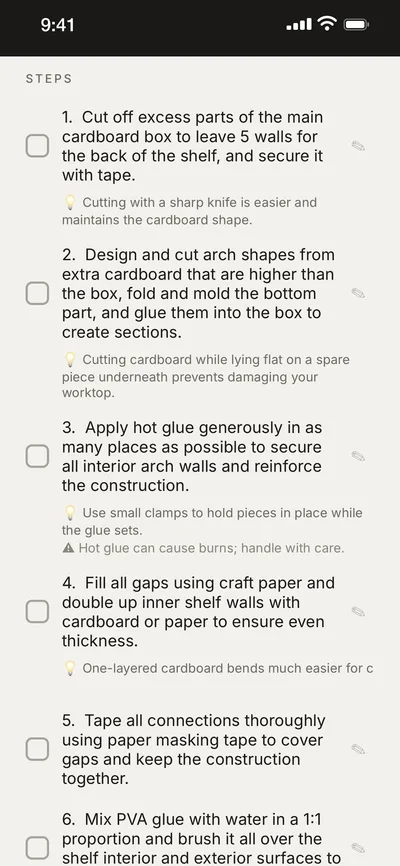
Every project keeps a View Original link back to the creator's video. InspiraDo never downloads or re-hosts the video itself.
What about TikToks with no talking?
Some tutorials are just music and text on screen. There's no voiceover or caption for an AI to read from the link, so these are the hardest kind to convert.
The fix is screenshots. Pause on each frame where a step or measurement appears, take a screenshot, then in InspiraDo tap 📸 Add from screenshots and pick them. The AI reads the text in your screenshots and builds the project from those. If you're doing it by hand, the same screenshots make a quick visual checklist.
Combining several TikToks into one plan
For bigger projects you'll often watch three creators do the same thing three slightly different ways. Instead of switching between videos, open a project, tap Add a video to attach the others, then tap ✨ Combine into one plan. InspiraDo merges them into a single set of steps without the duplicates.
Give the creator their credit
Whatever method you use, keep the link and the creator's name with your steps. Follow them, and if you make the thing, tell them in the comments or tag them. Creators make the free tutorials we all learn from, and that's how they keep going.
FAQ
Can AI turn a TikTok video into instructions?
Yes. Apps like InspiraDo read a TikTok's narration and caption and lay out numbered steps, materials and tools. It works best when the creator talks through the steps or lists them in the caption. For silent videos with text on screen, screenshot the steps and let the AI read the screenshots instead.
Does InspiraDo download the TikTok video?
No. InspiraDo keeps a link back to the original video and the creator, and never downloads or re-hosts it.
Is it free?
Saving tutorials, projects, shopping lists, Follow Mode and search are free, and you get 7 AI-built projects free. InspiraDo Pro adds 50 AI-built projects a month for $4.99/month or $39.99/year. See pricing.
Does this work for Instagram Reels and YouTube too?
Yes. Instagram Reels work the same way as TikTok (see how to organize your saved Instagram tutorials). YouTube tutorials work best of all, because the AI watches the video itself, including what's shown on screen.
Stop saving. Start doing.
Share any TikTok, Instagram Reel or YouTube tutorial to InspiraDo and get the steps, materials and tools in one place. Free on iPhone.
