How-to
How to Turn a YouTube Tutorial Into Step-by-Step Instructions
YouTube is where the best tutorials live, and where the steps are buried deepest. Here's how to pull them out of a long video and onto a list you can actually follow.
Quick answer
To turn a YouTube tutorial into step-by-step instructions:
- Open the description and chapters first, where creators often list supplies and timestamps.
- Watch once at 1.5–2× speed to learn the shape of the project.
- Write one action per step, pulling from what's said, what's shown, and the description.
- List materials and tools separately, with the amounts the creator says or holds up.
- Keep the link, and the timestamp of any tricky part, so you can jump back and credit the creator.
Or let an app do it: paste the YouTube link into InspiraDo and tap ✨ Generate project with AI. Because it watches the video, you get the most complete steps, materials and tools of any platform, in under a minute.
The tutorials I most wanted to make were always the long ones: the eighteen-minute builds, the full recipes, the "I flipped this thrift-store dresser" videos. And those were exactly the ones I never finished, because following along meant propping my phone up, scrubbing back to catch a measurement, losing my place, and sitting through an ad with paint drying on my hands. That's the gap this guide is about.
Why YouTube tutorials are hard to follow
YouTube is where creators go deep, which is the best and the worst thing about it. Every step is in there. It's just spread across a long video:
- The supplies are read aloud once, usually near the start, and never repeated.
- The one tip that saves the project shows up around minute 11.
- A step can be a quick cut or a slow demonstration, so "pause at every cut" doesn't map as neatly as it does on a 30-second video.
- Ads interrupt right when you're trying to follow along.
- Your hands aren't free. You're constantly reaching over to scrub back and find your place.
So following a YouTube tutorial really means pulling those scattered steps into one ordered list you can work from without touching the video again.
Method 1: Write the steps out yourself
Free, works for any video, and takes about 15–20 minutes for a longer tutorial.
- Start with the description and chapters. Good creators list supplies, links and timestamps in the description. The chapter markers under the progress bar are a free outline, so use them as your rough steps.
- Watch once at 1.5–2× speed. Tap the gear icon, then Playback speed. You're just learning the shape: what you're making and the main stages.
- Go back and capture the details. Jump to each chapter, pause, and write each step as a single action that starts with a verb: "Sand the top," not "then the sanding part."
- Catch the supplies as they're said or shown. Write the quantity and size the moment the creator says it or holds it up to the camera. They rarely repeat it.
- Split materials from tools. Materials get used up (paint, wood, glue). Tools you keep (a drill, a sander). It makes shopping much easier later. There's a full guide in how to create a materials list from a DIY video.
- Note the tips and warnings. "Let the first coat dry fully," "pilot the hole or the bit will wander." These are the details people skip and regret.
- Keep the link and the key timestamps. So you can jump straight back to the tricky part, and credit the creator.
Method 2: Let InspiraDo build the steps for you
This is the reason I built InspiraDo, and YouTube is where it works best.
- Send the video to InspiraDo. In the YouTube app, tap Share and choose InspiraDo. Or copy the link, open InspiraDo, tap + and paste it.
- Tap ✨ Generate project with AI. Here's what's different on YouTube: InspiraDo watches the actual video, not just the title and description, so it catches the measurement held up to the camera and the step that's only shown, not said. You'll even see it say "Watching the video…" while it works.
- Check it over. Tap ✎ on any line to fix it, or add your own steps. It's your project now.
- Make it, hands-free. Open Follow Mode: one big step at a time, so you're not scrubbing a fifteen-minute video with glue on your hands.
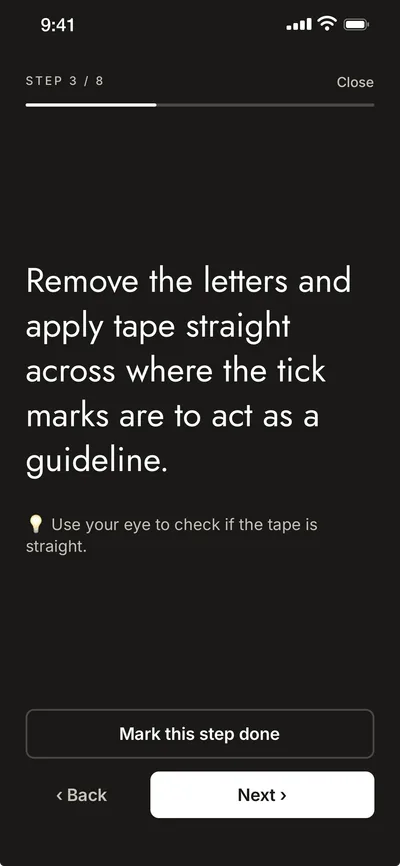
Every project keeps a View Original link back to the creator's video. InspiraDo never downloads or re-hosts the video itself.
Why YouTube is the best source for this
A short video gives an app only the narration and the caption to read. YouTube gives it the whole video, so InspiraDo can watch the demonstration: the tool that's used but never named, the amount that's shown but never said, the note in the corner of the screen. That's why YouTube tutorials come out the most complete, and why the how-to or recipe you've been avoiding because it's "too long" is often the easiest kind to turn into a project.
Combining several videos into one plan
Bigger projects send you to three different creators for three parts of the job. Instead of juggling tabs, open a project, tap Add a video to attach the others, then tap ✨ Combine into one plan. InspiraDo merges them into a single set of steps without the repeats: one plan from a whole playlist's worth of research.
Give the creator their credit
Whatever method you use, keep the link and the creator's name with your steps. Like the video, subscribe, and if you make the thing, tell them in the comments. Long tutorials take real work to film, and that's how creators keep making the ones we all learn from.
FAQ
Can AI turn a YouTube video into step-by-step instructions?
Yes. InspiraDo watches the video and lays out numbered steps, a materials list and a tools list, with tips under the steps. Because it watches the whole video, YouTube gives the most complete results of any platform.
Does InspiraDo download the YouTube video?
No. InspiraDo keeps a link back to the original video and the creator, and never downloads or re-hosts it.
Does it work with long videos and recipes?
Yes, and long videos are where it helps most. It pulls the scattered steps and the read-aloud supplies into one ordered list, so you're not scrubbing back and forth through a fifteen-minute video to follow along.
Is it free?
Saving tutorials, projects, shopping lists, Follow Mode and search are free, and you get 7 AI-built projects free. InspiraDo Pro adds 50 AI-built projects a month for $4.99/month or $39.99/year. See pricing.
Make the one you keep rewatching.
Paste any YouTube tutorial into InspiraDo and get the steps, materials and tools in one place. It watches the video, so nothing slips by. Free on iPhone.
